
How to draw 2D drawings with Google SketchUp
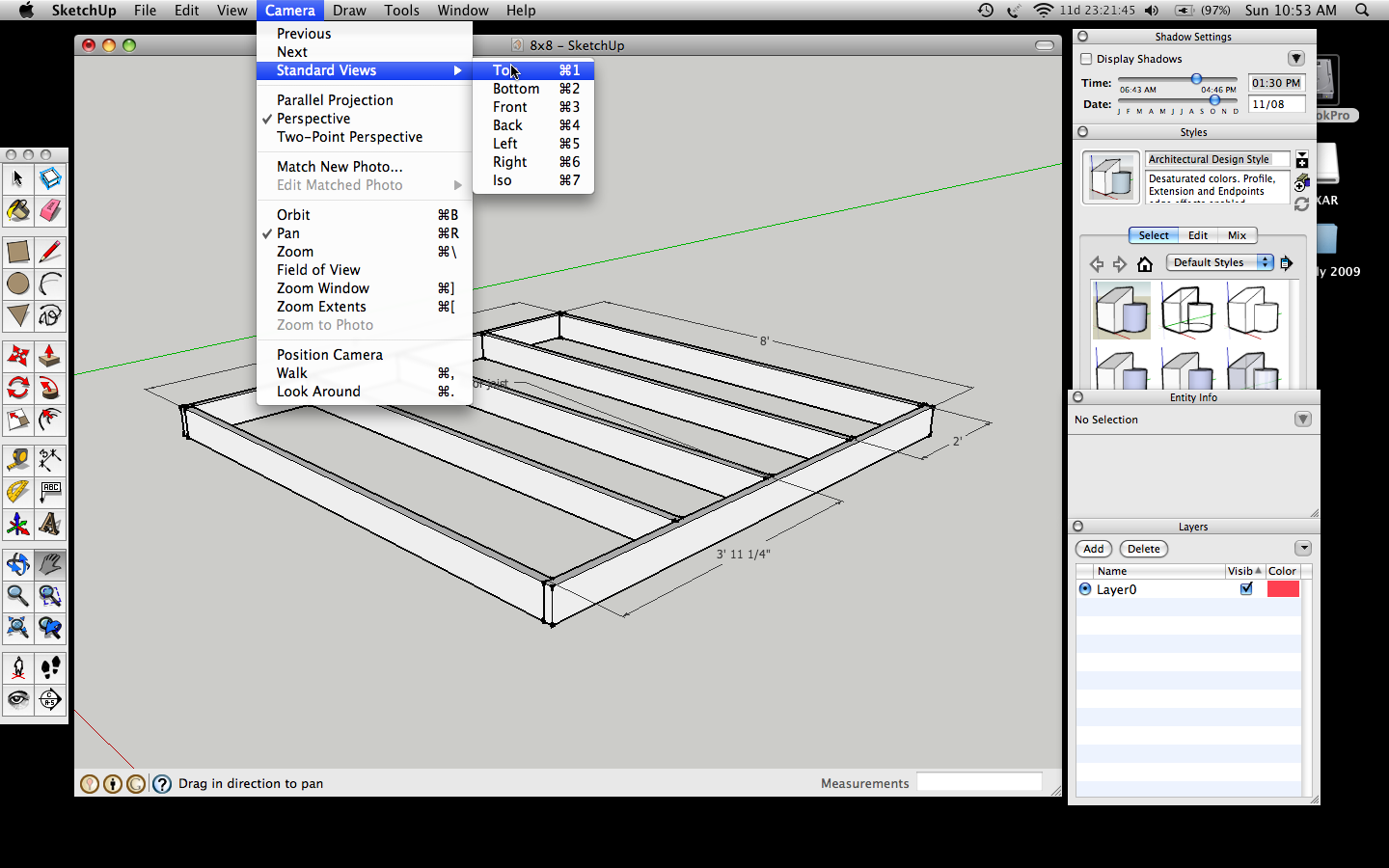
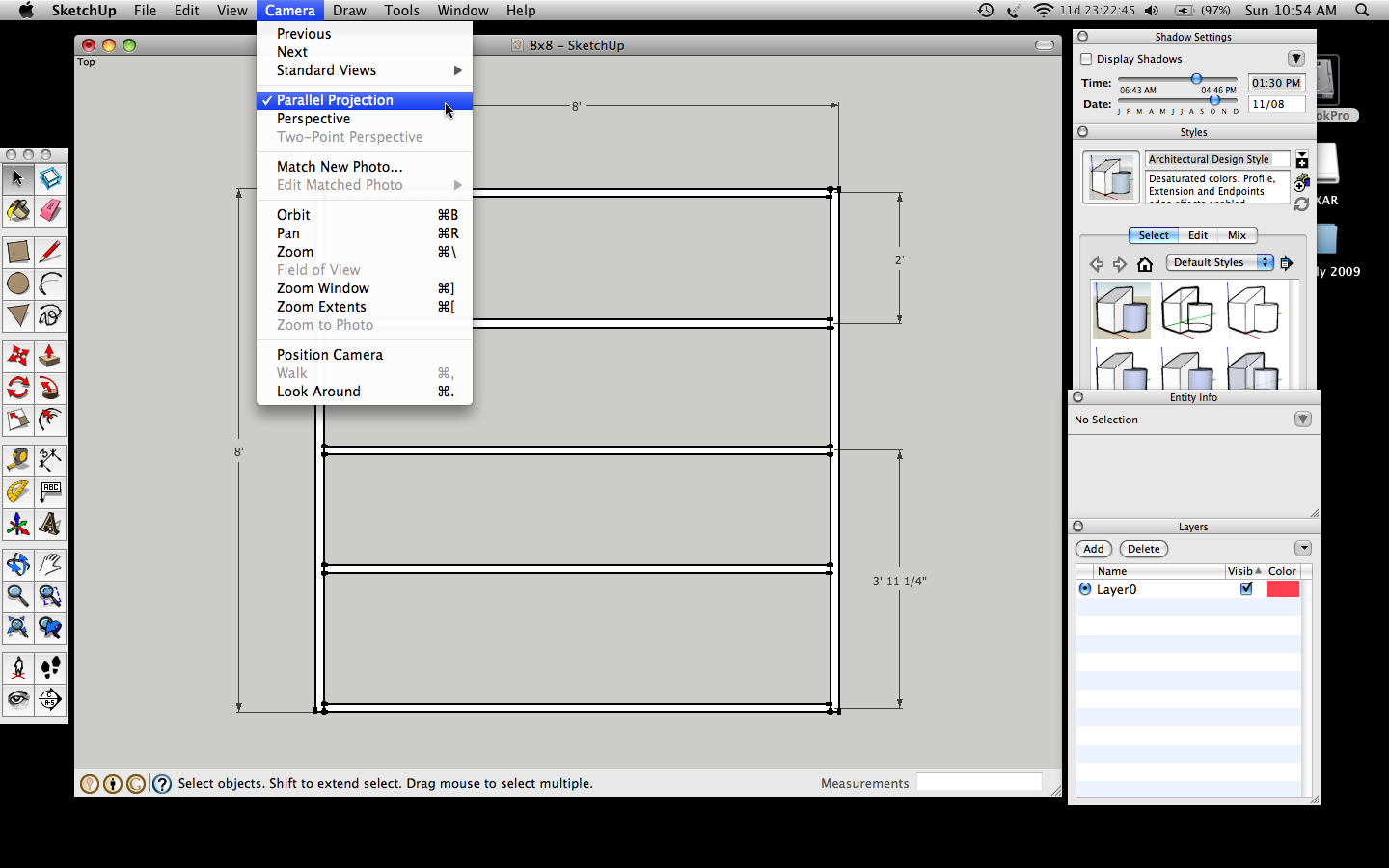
The other night I realized how easy it is to draw 2D drawings with the free version of Google SketchUp. All you have to do is select Camera > Standard Views > Top to set the view from the top of the model. If you want a side-view of a wall or an end wall you’d just select Left, Right, Bottom, etc, instead of Top. Then select Camera > Parallel Projection and voila you have a 2D drawing from your 3D model. Here’s are two screen shots that show how to do it on a Mac. PC users should have the same controls it just looks different.
I think the Pro version of SketchUp would be great for professionals that make plans and presentations all the time because it would a huge time saver. In fact I think the $495 Google SketchUp Pro costs is a steal of a deal for professionals. But for those of us happy exporting drawings and building the plan documents separately the free version of SketchUp is all we need. I should be finished with the 8×20 free tiny house plans by tomorrow morning and I’m making the plans using the free version of SketchUp.
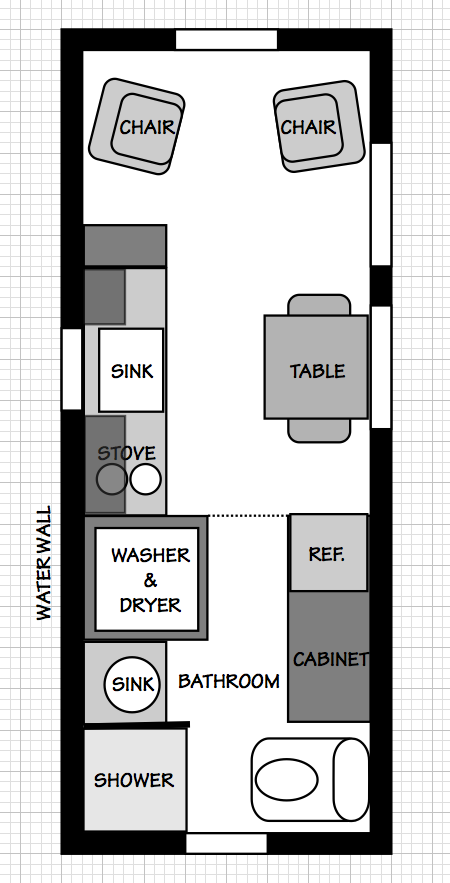
please u publised drawing of residential plan in 2d…………….
Admiring the time and energy you put into your site and detailed information you
present. It’s great to come across a blog every once in a
while that isn’t the same old rehashed material. Fantastic read!
I’ve saved your site and I’m including your RSS feeds to my Google
account.